Blackboard 9 Bug List
Blackboard 9 included a new interface and some additional features, but it also contains some bugs that we have announced via the Message Center. This page compiles those "bug reports" in a single location, organized alphabetically by feature.
| Feature |
Problem |
Solution/Workaround |
| Assignment Manager |
Students try to submit an assignment, but they fail to click on the Attach File button. Even though the Grade Center displays the typical  icon suggesting that the assignment has been submitted and needs grading, the student(s) didn't actually submit a file. icon suggesting that the assignment has been submitted and needs grading, the student(s) didn't actually submit a file. |
The only solution to this problem is to warn the students repeatedly that when they are submitting a file to you via the assignment manager in Blackboard, they need to locate the file on their hard drive or flash drive (or wherever it is saved) and in addition click on the Attach File button:

|
| Course List Module |
Courses that you don't want to see are displaying in your Course List module on the My Blackboard page, and some courses that you do want to see are not displaying. |
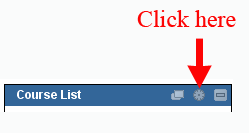
This problem occurs when you have older courses in your list. You need to click on the gear icon on the right side of the title bar of the Course List module:
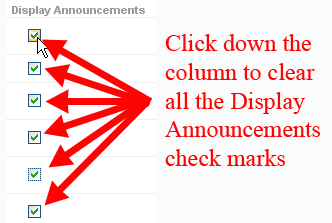
On the Personalize: Course List page, you need to clear all the check marks in the Display Announcements column:
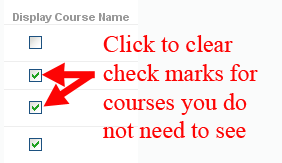
Once you've done that, you can also clear the check marks in the Display Course Name column for those courses that you don't need to see listed:
Clicking on the  then sends these changes to the server. then sends these changes to the server. |
| Test Options: Blank "Display After" date |
When adding a test to a content area in your Blackboard course, you are taken to a Test Options page to set the various display options for the test. Section 2 among those options is Test Availability, which allows you to determine when students see the link for the test (among many other options). If you set a Display Until date (when the link for the test will disappear, so the students can no longer take the test) but leave the Display After date blank, you will be prevented from modifying those test options after the deadline has passed. For example, if you want to extend the deadline, you won't be able to. |
There is no "after-the-fact" workaround for this problem that you can do yourself. Instead, you need to send email to
itec@bucknell.edu, letting us know the name of the course that has a test (or tests) with this problem. We can make a "behind-the-scenes" change to the database that will set a value for the "Display After" field, allowing you to access the Test Options again.
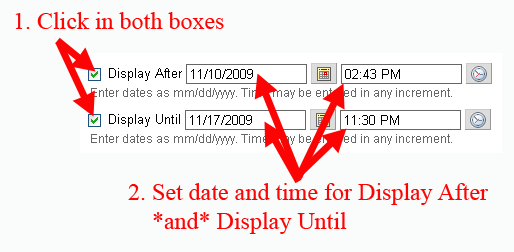
The only workaround you can do yourself is to remember to set a specific Display After date and time when you also set the Display Until date and time:
|
| Uploading Grades to the Grade Center from Excel |
When uploading grades from Excel into Blackboard's Grade Center, if you keep the default value of Auto for the Delimiter Type, the browser will hang, and the upload will not occur. |
In order to upload grades successfully from Excel, we recommend that you download the Grade Center first from Blackboard using the Work Offline button at the top right of the Grade Center page:
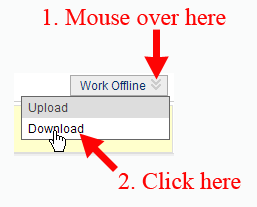
In our experience, downloading the Grade Center using Tab as the delimiter type works best. Once you open the file in Excel and make changes, be sure to save the file as tab-delimited text (rather than as unicode text) or as CSV (Comma delimited). When uploading the modified spreadsheet back into Excel (using the Work Offline button again), make sure to select Comma or Tab as the Delimiter Type, depending on which type you chose when saving your modified Excel file. |
Last revised November 10, 2009. Please send questions, comments, or any additional bug reports to
itec@bucknell.edu.
|